
Everything you need to
automate your sprite pipeline.
SpriteFix isn't just a basic image editor. It's a specialized suite of mathematical layout tools built explicitly for game developers.
Original Messy Sprite

Normalized Clean Strip

Auto-Island Detection
Stop guessing bounds. Our algorithm detects the true edges of your sprite, centers it perfectly to the bottom anchor point, and strips away transparent dead zones and garbage pixels automatically.
- ✓ Bottom-center alignment
- ✓ Uniform pixel normalization
Pack Up to 100 Frames at OncePRO
Have a folder of 100 individual PNG frames? Don't copy-paste them manually. Drag and drop the entire folder into SpriteFix (up to 4.5MB total size due to Vercel Serverless payload limits), and we'll intelligently sort and pack them into a seamless sprite sheet.
Universal Format Conversion Engine
Different engines have different demands. Because our pipeline separates extraction from composition, you can mathematically transform your sprite sheets into absolutely any format.
- 1Grid to RowConvert dense 2D RPG Maker grids into perfect 1D animation rows for Unity seamlessly.
- 2Row to GridPack a 64-frame horizontal animation into a tight 8x8 square texture atlas for Unreal Engine.
- 3Slice to ZIP ArchiveUpload any complex sheet and instantly download a `.zip` containing every individual frame as its own PNG.
Input: RPG Grid
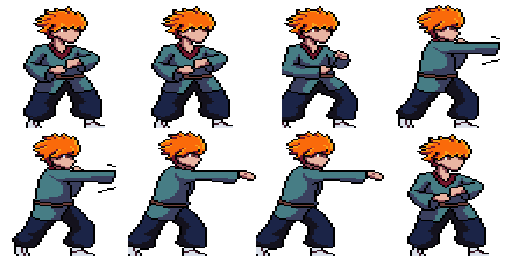
Output: Horizontal Strip
Live FPS Animation Preview
Never guess if your sprite sheet was generated correctly. Our integrated previewer plays back your processed animation right in the browser, ensuring perfect alignment before you ever download it.
Precision Engine Settings
Never deal with off-by-one pixel errors again. Enforce strict mathematical rules on your sprite generation to ensure 100% compatibility with Unity, Godot, and Unreal Engine.
Standardized Output Sizing
Modern game engines optimize memory using Power-of-Two textures. SpriteFix can force your slices to conform strictly to industry-standard grid sizes so you never waste a pixel.
Custom Frame Counts
Tell the engine exactly how many frames to extract or pack. We support strict parsing to guarantee you don't end up with partial frames, ghost slices, or alignment drift.
Any Input. Perfect Output.*
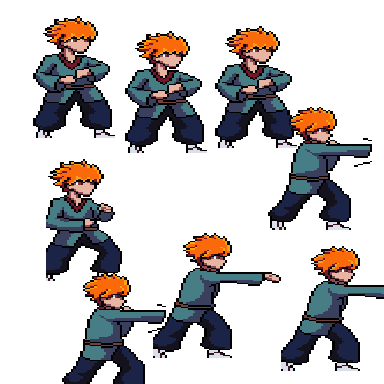
SpriteFix supports every common and uncommon layout. Stop worrying about formatting before you upload.
Supported Input Types

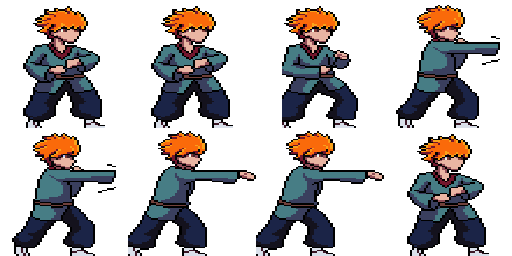
Delivered Output Types
* Extremely dense sheets where the same attack or VFX cycle repeats many times back-to-back with very little gap between repetitions may have a few repetitions merged into one frame today. Full per-cycle separation for these ultra-dense sequences is on our roadmap.
How SpriteFix Works
From a messy upload to a game-ready sprite sheet, in five steps.
- 1
Upload your sprite(s)
Drag and drop a single sprite sheet, or select multiple individual frame files (PNG, JPEG, or WebP). Free & Basic plans allow up to 10 files / 2.5MB total; Pro allows up to 100 files / 4.5MB total, each up to 4096x4096px.
- 2
Choose how frames are found
For a single file, pick Auto-Detect Islands (default — finds sprites separated by transparent space) or Strict Grid Slicing (slices by fixed rows/columns). For multiple files, choose Treat files as Individual Frames (each file becomes one frame, default) or Extract islands from all files (each file is scanned for multiple sprites).
- 3
Configure the output
Turn on Normalize Frames to bottom-align, trim, and resize every frame to your chosen Output Frame Size. Choose to Pack into Sprite Sheet (Single Row, or Grid on Pro) or export a ZIP of individual frames instead. Use Target Animation Frames / Frames per Row and Output Grid Rows to control the final layout. Every field has an i icon in the workspace explaining exactly what it does.
- 4
Process and preview
Click "Process Fixed Sprite." Compare Original vs Fixed side-by-side, and use the Animation Preview to check frame order, alignment, and playback before exporting anything.
- 5
Adjust, reprocess, or download
Not quite right? Click "← Adjust Settings & Reprocess" below the preview to go back with your files and settings intact, tweak anything, and process again — no re-upload needed. Happy with it? Download Free (Watermarked), Download Clean Sprite (Basic/Pro), or Download ZIP (Pro, when Pack into Sprite Sheet is off).
Glossary & Best Practices
Everything you need to know to get perfect exports every time.
Grid vs Row Output Layouts
Single Row: Lays every frame out horizontally in one strip. The default, and best for standard animation sheets.
Grid: Arranges frames into rows and columns using Output Grid Rows and Frames per Row. Use this for large frame counts that would make a single row too wide.Pro Feature
Frame Extraction Modes
Auto-Detect Islandsscans for "islands" of color surrounded by transparency and treats each one as a frame. Best for messy sheets where frames don't touch.
Warning: If a sword swing or VFX physically disconnects from the character with empty space between them, it may be detected as its own frame. If your frames touch, overlap, or share borders, switch to Strict Grid Slicing instead.Pro Feature
Normalize Frames & Bottom-Center Alignment
With Normalize Frames on, SpriteFix calculates the visible bounding box of every frame, trims empty transparent edges, and aligns each one to the bottom-center of your chosen Output Frame Size.
This guarantees a character's feet perfectly touch the floor in Unity or Godot with no manual pivot adjustments (a 2px safety margin prevents bleeding). This setting is locked on whenever Pack into Sprite Sheet is enabled, since the sheet needs uniform frame sizes.
Uploading Multiple Files
Treat files as Individual Frames (default): each uploaded file becomes exactly one frame, in upload order. Use this when your animation is already split into separate files.
Extract islands from all files: SpriteFix runs Auto-Detect Islands on every file and combines all detected frames into one sequence. Use this when each file is itself a small sheet containing multiple sprites.
Strict Grid SlicingPro Feature
Ignores transparency entirely and slices the source sheet into equal-sized cells based on Input Grid Rows. Use this when frames touch, overlap, or share borders so Auto-Detect can't separate them.
Input Grid Rows must match how your source sheet is actually laid out — set it incorrectly and frames will be cut at the wrong boundaries.
Sprite Sheet vs. ZIP Export
Pack into Sprite Sheet (on by default): combines every frame into a single PNG, laid out as Single Row or Grid.
Off (Pro only): instead download a ZIP containing each processed frame as its own PNG — handy for engines or pipelines that prefer individual frame files.Pro Feature
Output Frame Size & Frame Count
Output Frame Size (64, 128, or 256px) is the pixel width and height of every frame in the final output. Pick a size large enough to fit your tallest/widest frame without clipping — larger sizes mean larger files.
Target Animation Frames (Single Row) or Frames per Row + Output Grid Rows(Grid) control how many frames appear in the final sheet and how they're arranged.
Animation Preview
After processing, the workspace shows a live, looping Animation Preview of your output sheet — for both Single Row and Grid layouts — so you can check frame order, alignment, and playback speed before downloading anything.
If something looks off (wrong order, blank frames, jumpy playback), use "← Adjust Settings & Reprocess" to fix it without starting over.
Adjust Settings & Reprocess
Don't like the result? On the Preview screen, click "← Adjust Settings & Reprocess" below the download buttons. SpriteFix takes you back to the Configure panel with your uploaded files and every setting exactly as you left them — change anything and click "Process Fixed Sprite" again.
You can repeat this as many times as you like. "Upload New Sprite" is still there in the header if you want to start over completely with different files.
Troubleshooting Outputs
Is your frame too small? Make sure Output Frame Size is large enough to contain the tallest/widest frame in your sheet.
Are frames merging?Stray pixels or anti-aliasing fuzz can connect two frames under Auto-Detect Islands. Clean up your source art so there's 0 alpha transparency between frames, or switch to Strict Grid Slicing.
Plans at a Glance
A quick reference for what each plan unlocks. See the pricing page for full details and current prices.
| Feature | Free | Basic | Pro |
|---|---|---|---|
| Auto-Detect Islands & Normalize Frames | ✅ | ✅ | ✅ |
| Clean export (no watermark) | — | ✅ | ✅ |
| Frames per batch / total size | 10 / 2.5MB | 10 / 2.5MB | 100 / 4.5MB |
| Strict Grid Slicing | — | — | ✅ |
| Grid output layout | — | — | ✅ |
| ZIP export of individual frames | — | — | ✅ |
Frequently Asked Questions
Quick answers to common questions. Click any question to expand.
What does SpriteFix do?
SpriteFix automatically standardizes messy sprite sheets by aligning frames (bottom-center), normalizing dimensions, and repacking them into clean grids or rows ready for game engines.
What file formats and sizes are supported?
SpriteFix accepts PNG, JPEG, and WebP files with RGBA channels, up to 4096x4096px each. Free and Basic plans allow up to 10 files / 2.5MB total per batch; Pro allows up to 100 files / 4.5MB total.
Is SpriteFix free to use?
Yes — Free exports are watermarked. A one-time Basic upgrade removes the watermark for unlimited clean downloads, for life. A Pro upgrade adds 100-frame batching, Grid output, Strict Grid Slicing, and ZIP frame exports. See the pricing page for current prices.
Which game engines are compatible with SpriteFix exports?
SpriteFix exports standard sprite sheets (and ZIPs of individual frames on Pro) that work with all major game engines, including Unity, Godot, Unreal Engine, GameMaker, and Cocos2d-x.
Does SpriteFix separate every frame perfectly, even in dense combat animations?
For the vast majority of sprite sheets — including messy combat strips with detached VFX — yes. One known limitation: in extremely dense sheets where the same attack or effect repeats many times back-to-back with very little gap, a few of those repetitions can be merged into a single frame. Full per-cycle separation for these ultra-dense sequences is on our roadmap.
Can I change my settings after processing and try again?
Yes. On the Preview screen, click "← Adjust Settings & Reprocess"below the download buttons to return to the Configure panel with your files and settings preserved. Change anything and click "Process Fixed Sprite" again — repeat as many times as you need.
Ready to fix your pipeline?
Stop wasting time in image editors. Buy SpriteFix once, own the power forever.